Semantic-UI Dropdown Input Content
Last Updated :
23 Jul, 2025
Semantic UI is an open-source framework that uses CSS and jQuery to build great user interfaces. It is the same as a bootstrap for use and has great different elements to use to make your website look more amazing.
A Semantic UI Dropdown allows a user to select a value from a series of options. Semantic-UI Dropdown offers us 11 types of dropdown and 3types of content Header, divider, and icon. In this article, we will learn about Dropdown Input Content. This is used to create a dropdown menu that contains an input.
Semantic-UI Dropdown Content Input Class:
- input: This class is used to add an input to the specified dropdown menu.
Syntax:
<div class="ui dropdown button">
   <div class="input">
     <input type="text" name="...." placeholder="...">
   </div>
</div>
The below example illustrates the Semantic-UI Dropdown Input Content:
Example 1:
HTML
<!DOCTYPE html>
<html>

<head>
    <title>Semantic-UI Dropdown Input Content</title>
    <link href=
"https://cdnjs.cloudflare.com/ajax/libs/semantic-ui/2.4.1/semantic.min.css"
          rel="stylesheet" />
    <script src=
"https://code.jquery.com/jquery-3.1.1.min.js">
    </script>
    <script src=
"https://cdnjs.cloudflare.com/ajax/libs/semantic-ui/2.4.1/semantic.min.js">
    </script>
</head>

<body>
    <center>
        <div class="ui container">
            <h1 style="color:green;">
                GeeksforGeeks
            </h1>
            <h3>Semantic-UI Dropdown Input Content</h3>
            <div class="ui floating labeled icon dropdown button">
                <i class="filter icon"></i>
                <span class="text">Filter</span>
                <div class="menu">
                    <div class="header">
                        Search Issues
                    </div>
                    <div class="ui left icon input">
                        <i class="search icon"></i>
                        <input type="text" name="search"
                               placeholder="Search...">
                    </div>
                    <div class="header">
                        <i class="tags icon"></i>
                        Filter by tag
                    </div>
                    <div class="divider"></div>
                    <div class="item">
                        <div class="ui black empty circular label">
                        </div>
                        GeeksforGeeks
                    </div>
                </div>
            </div>
        </div>
        <script>
            $('.ui.dropdown').dropdown();
        </script>
    </center>
</body>

</html>
Output:
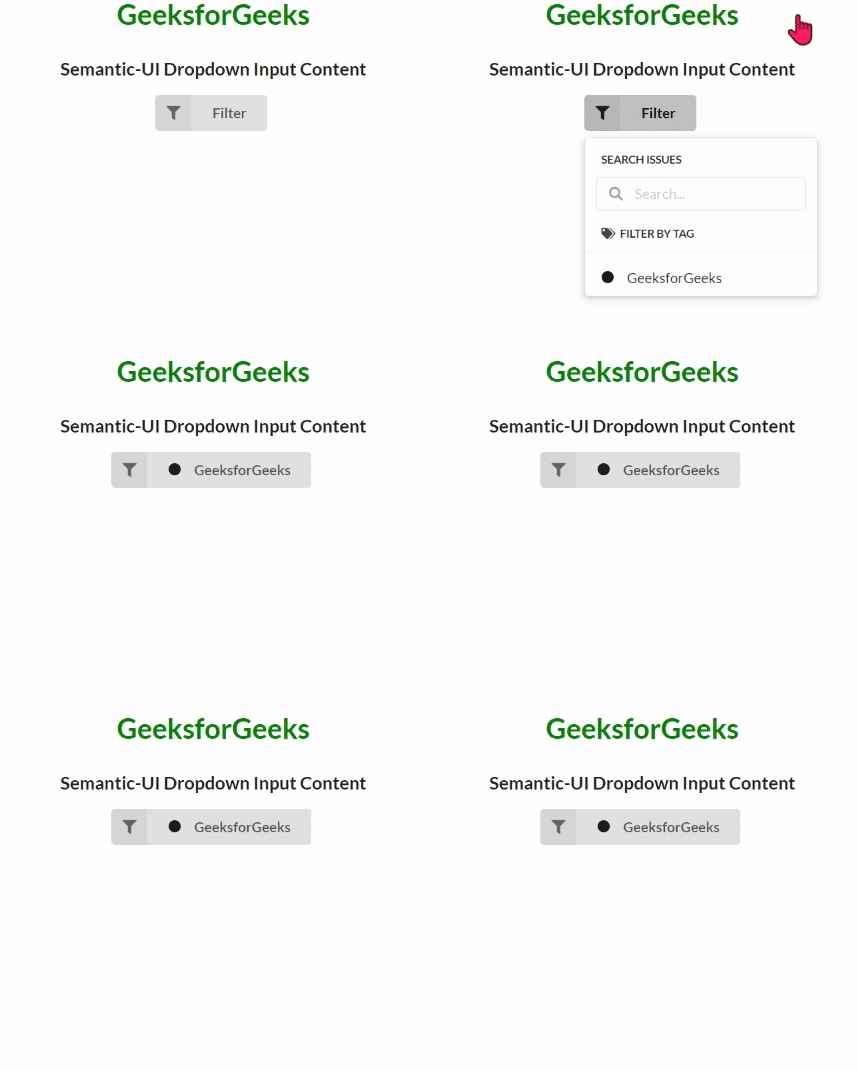 Semantic-UI Dropdown Input Content
Example 2:
HTML
<!DOCTYPE html>
<html>

<head>
    <title>Semantic-UI Dropdown Input Content</title>
    <link href=
"https://cdnjs.cloudflare.com/ajax/libs/semantic-ui/2.4.1/semantic.min.css"
          rel="stylesheet" />
    <script src=
"https://code.jquery.com/jquery-3.1.1.min.js">
    </script>
    <script src=
"https://cdnjs.cloudflare.com/ajax/libs/semantic-ui/2.4.1/semantic.min.js">
    </script>
</head>

<body>
    <center>
        <div class="ui container">
            <h1 style="color:green;">
                GeeksforGeeks
            </h1>
            <h3>Semantic-UI Dropdown Input Content</h3>
            <div class="ui floating labeled
                        icon dropdown button">
                <i class="filter icon"></i>
                <span class="text">Filter</span>
                <div class="menu">
                    <div class="header">
                        Search Issues
                    </div>
                    <div class="ui left icon input">
                        <i class="search icon"></i>
                        <input type="text" name="search"
                               placeholder="Search...">
                    </div>
                    <div class="header">
                        <i class="tags icon"></i>
                        Filter by tag
                    </div>
                    <div class="divider"></div>
                    <div class="item">
                        <div class="ui red empty
                                    circular label">
                        </div>
                        Urgent
                    </div>
                    <div class="item">
                        <div class="ui green empty
                                    circular label">
                        </div>
                        Safe
                    </div>
                </div>
            </div>
        </div>
        <script>
            $('.ui.dropdown').dropdown();
        </script>
    </center>
</body>

</html>
Output:
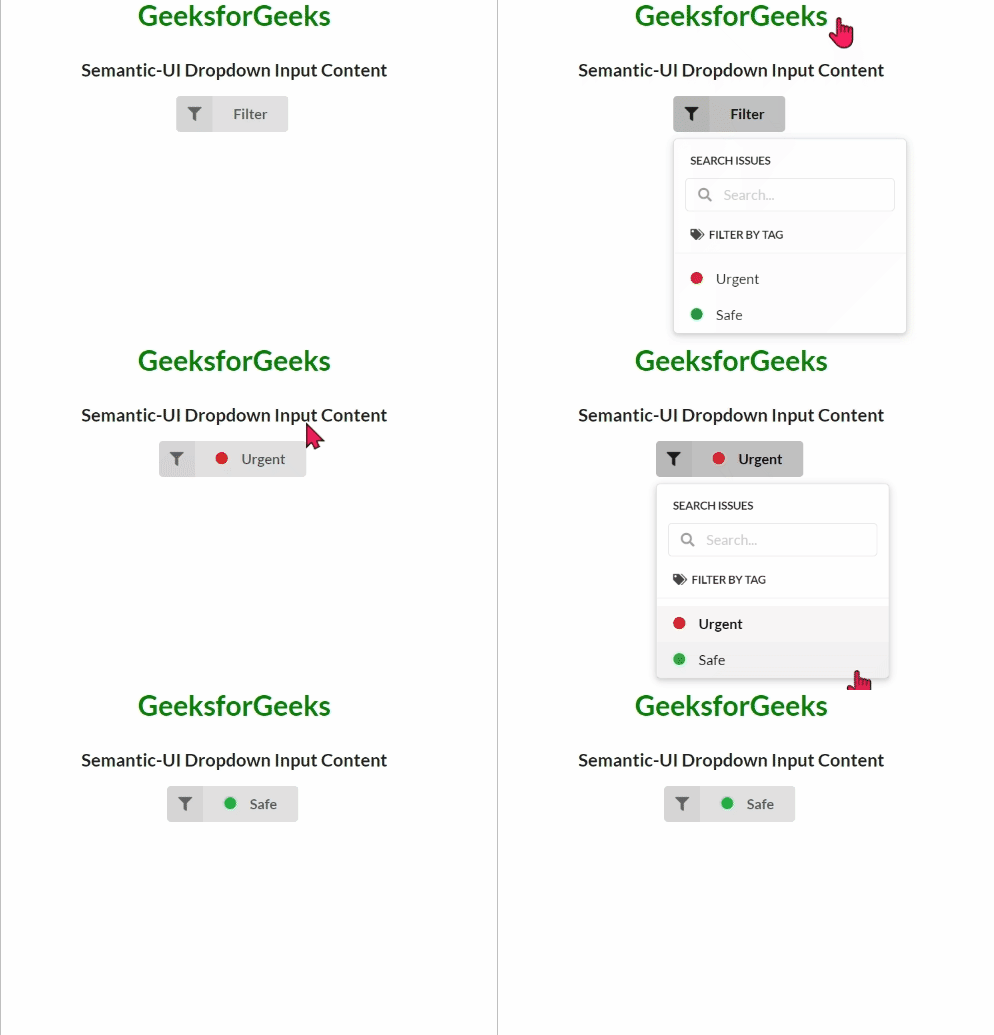 Semantic-UI Dropdown Input Content
Reference: https://semantic-ui.com/modules/dropdown.html#input