Android TextSwitcher is a user interface widget that contains a number of textView and displays one at a time. Textswitcher is a subclass of View Switcher which is used to animate one text and display the next one. Generally, we use TextSwitcher in two ways manually in XML layout and programmatically in Kotlin file. We should define an XML component, to use TextSwitcher in our android application.
<TextSwitcher
    android:id="@+id/view"
    android:layout_width="match_parent"
    android:layout_height="wrap_content">
</TextSwitcher>
Different attributes of the TextSwitcher widget
| XML attributes | Description |
|---|
| android:id | Used to specify the id of the view. |
| android:onClick | Used to specify the action when this view is clicked. |
| android:background | Used to set the background of the view. |
| android:padding | Used to set the padding of the view. |
| android:visibility | Used to set the visibility of the view. |
| android:inAnimation | Used to define the animation to use when the view is shown. |
| android:outAnimation | Used to define the animation to use when the view is hidden. |
| android:animateFirstView | Used to define whether to animate the current view when the view animation is first displayed. |
Step by Step Implementation
Step 1: Create new Project
First, we create a new project by following the below steps:
- Click on File, then New => New Project.
- After that include the Kotlin support and click on next.
- Select the minimum SDK as per convenience and click the next button.
- Then select the Empty activity => next => finish.
Step 2: Working with activity_main.xml
In this file, we use the TextSwitcher, and Buttons and also set their attributes.
activity_main.xml:
XML
<androidx.constraintlayout.widget.ConstraintLayout xmlns:android="http://schemas.android.com/apk/res/android"
    xmlns:app="http://schemas.android.com/apk/res-auto"
    xmlns:tools="http://schemas.android.com/tools"
    android:layout_width="match_parent"
    android:layout_height="match_parent"
    android:background="@color/white"
    android:orientation="vertical"
    tools:context=".MainActivity">


    <TextSwitcher
        android:id="@+id/textSwitcher"
        android:layout_width="match_parent"
        android:layout_height="wrap_content"
        android:background="@color/gray_btn_bg_color"
        android:layout_gravity="center_horizontal"
        app:layout_constraintBottom_toBottomOf="parent"
        app:layout_constraintEnd_toEndOf="parent"
        app:layout_constraintStart_toStartOf="parent"
        app:layout_constraintTop_toTopOf="parent"
        app:layout_constraintVertical_bias="0.4" />


    <Button
        android:id="@+id/prev"
        android:layout_width="wrap_content"
        android:layout_height="wrap_content"
        android:layout_gravity="center"
        android:layout_marginTop="32dp"
        android:backgroundTint="@color/main_green_stroke_color"
        android:text="Prev"
        app:layout_constraintEnd_toStartOf="@+id/next"
        app:layout_constraintHorizontal_bias="0.5"
        app:layout_constraintStart_toStartOf="parent"
        app:layout_constraintTop_toBottomOf="@+id/textSwitcher" />

    <Button
        android:id="@+id/next"
        android:layout_width="wrap_content"
        android:layout_height="wrap_content"
        android:layout_gravity="center"
        android:layout_marginTop="32dp"
        android:backgroundTint="@color/main_green_stroke_color"
        android:text="Next"
        app:layout_constraintEnd_toEndOf="parent"
        app:layout_constraintHorizontal_bias="0.5"
        app:layout_constraintStart_toEndOf="@+id/prev"
        app:layout_constraintTop_toBottomOf="@+id/textSwitcher" />

</androidx.constraintlayout.widget.ConstraintLayout>
Design UI:
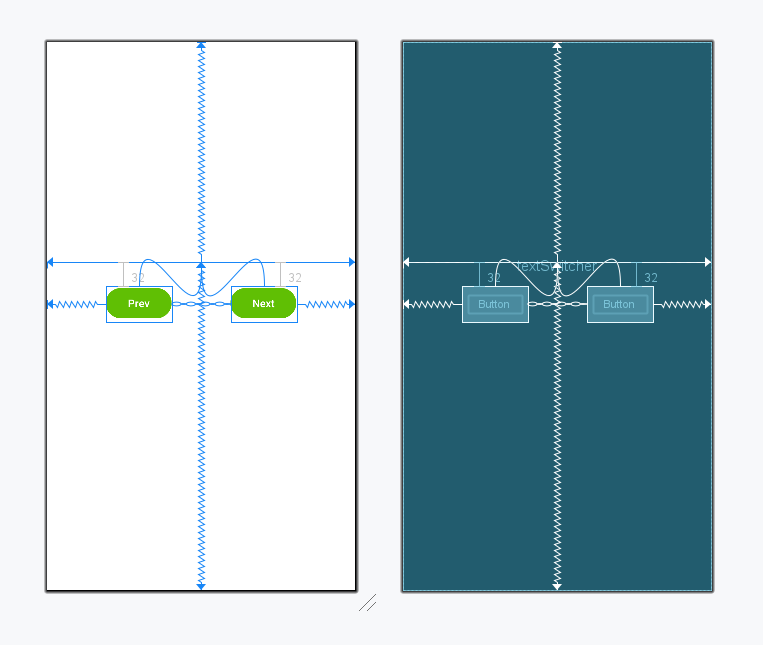
Step 3: Access TextSwitcher in MainActivity.kt file
First, we declare an array which contains the list of numbers used for the textView.
private val array = arrayOf("1","2","3","4","5")then, we access the TextSwitcher from the XML layout and set attributes like text color, text Size.
val textSwitcher: TextSwitcher = findViewById(R.id.textSwitcher)
MainActivity.kt:
Kotlin
package org.geeksforgeeks.demo

import android.graphics.Color
import android.os.Bundle
import android.view.Gravity
import android.view.animation.AnimationUtils
import android.widget.Button
import android.widget.TextSwitcher
import android.widget.TextView
import androidx.appcompat.app.AppCompatActivity

class MainActivity : AppCompatActivity() {
    private val array = arrayOf("1","2","3","4","5")
    private var index = 0


    override fun onCreate(savedInstanceState: Bundle?) {
        super.onCreate(savedInstanceState)

        setContentView(R.layout.activity_main)

        // accessing the TextSwitcher from XML layout
        val textSwitcher = findViewById<TextSwitcher>(R.id.textSwitcher)
        textSwitcher.setFactory {
            val textView = TextView(this@MainActivity)
            textView.gravity = Gravity.TOP or Gravity.CENTER_HORIZONTAL
            textView.textSize = 32f
            textView.setTextColor(Color.RED)
            textView
        }
        textSwitcher.setText(array[index])

        val textIn = AnimationUtils.loadAnimation(
            this, android.R.anim.slide_in_left)
        textSwitcher.inAnimation = textIn

        val textOut = AnimationUtils.loadAnimation(
            this, android.R.anim.slide_out_right)
        textSwitcher.outAnimation = textOut

        // previous button functionality
        val prev = findViewById<Button>(R.id.prev)
        prev.setOnClickListener {
            index = if (index - 1 >= 0) index - 1 else 4
            textSwitcher.setText(array[index])
        }
        // next button functionality
        val next = findViewById<Button>(R.id.next)
        next.setOnClickListener {
            index = if (index + 1 < array.size) index + 1 else 0
            textSwitcher.setText(array[index])
        }
    }
}
Output:
Click the next button then we obtain the other text in the TextView.
Explore
Overview
Basics
Control Flow
Array & String
Functions
Collections
OOPs Concept
Exception Handling
Null Safety
Regex & Ranges