Dynamic TextSwitcher in Kotlin
Last Updated :
07 Feb, 2025
Android TextSwitcher is a user interface widget that contains number of textView and displays one at a time. Textswitcher is subclass of View Switcher which is used to animates one text and displays next one. Here, we create TextSwitcher programmatically in Kotlin file.
Steps of Implementing Dynamic TextSwitcher
Step 1: Create New Project
First we create a new project by following the below steps:
- Click on File, then New => New Project.
- After that include the Kotlin support and click on next.
- Select the minimum SDK as per convenience and click next button.
- Then select the Empty activity => next => finish.
Step 2: Modify activity_main.xml file
In this file, we only use two Buttons and no TextSwitcher as we will add it dynamically.
activity_main.xml:
XML
<androidx.constraintlayout.widget.ConstraintLayout
    xmlns:android="http://schemas.android.com/apk/res/android"
    xmlns:app="http://schemas.android.com/apk/res-auto"
    xmlns:tools="http://schemas.android.com/tools"
    android:layout_width="match_parent"
    android:layout_height="match_parent"
    android:id="@+id/main"
    android:background="@color/white"
    android:orientation="vertical"
    tools:context=".MainActivity">


    <Button
        android:id="@+id/prev"
        android:layout_width="wrap_content"
        android:layout_height="wrap_content"
        android:layout_gravity="center"
        android:backgroundTint="@color/main_green_stroke_color"
        android:text="Prev"
        app:layout_constraintBottom_toBottomOf="parent"
        app:layout_constraintEnd_toStartOf="@+id/next"
        app:layout_constraintStart_toStartOf="parent"
        app:layout_constraintTop_toTopOf="parent"
        app:layout_constraintVertical_bias="0.5" />

    <Button
        android:id="@+id/next"
        android:layout_width="wrap_content"
        android:layout_height="wrap_content"
        android:layout_gravity="center"
        android:backgroundTint="@color/main_green_stroke_color"
        android:text="Next"
        app:layout_constraintBottom_toBottomOf="parent"
        app:layout_constraintEnd_toEndOf="parent"
        app:layout_constraintStart_toEndOf="@+id/prev"
        app:layout_constraintTop_toTopOf="parent"
        app:layout_constraintVertical_bias="0.5" />

</androidx.constraintlayout.widget.ConstraintLayout>
Design UI:
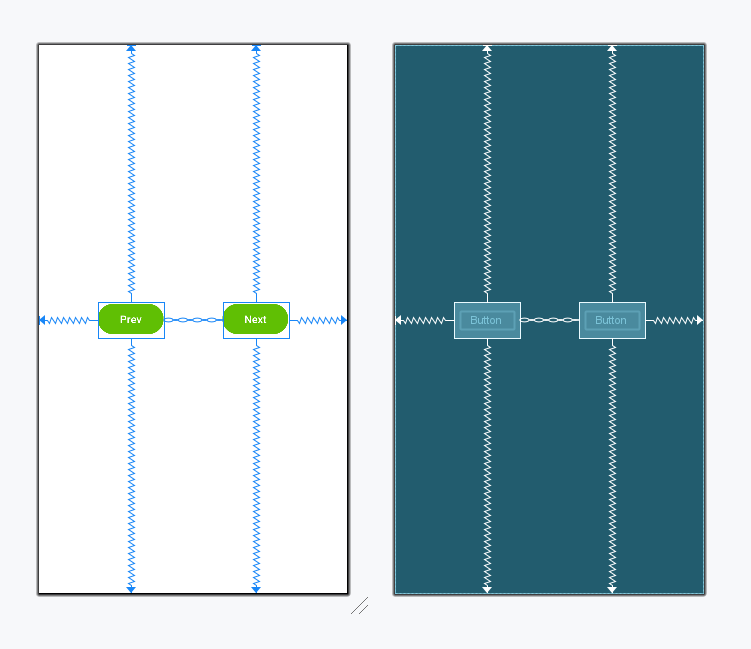
Step 3: Create TextSwitcher in MainActivity.kt file
First, we declare an array which contains the list of numbers used for the textView.
private val array = arrayOf("1","2","3","4","5")
then, we create the TextSwitcher and set attributes for textView like text color, text Size.
val textSwitcher: TextSwitcher = findViewById(R.id.textSwitcher)
Add the TextSwitcher in layout using this
val layout: ConstraintLayout = findViewById(R.id.main)
layout.addView(textSwitcher)
MainActivity.kt:
Kotlin
package org.geeksforgeeks.demo

import android.graphics.Color
import android.os.Bundle
import android.view.Gravity
import android.view.animation.AnimationUtils
import android.widget.Button
import android.widget.TextSwitcher
import android.widget.TextView
import androidx.appcompat.app.AppCompatActivity
import androidx.constraintlayout.widget.ConstraintLayout

class MainActivity : AppCompatActivity() {
    private val array = arrayOf("1","2","3","4","5")
    private var index = 0

    override fun onCreate(savedInstanceState: Bundle?) {
        super.onCreate(savedInstanceState)
        setContentView(R.layout.activity_main)

        val textSwitcher = TextSwitcher(this)

        textSwitcher.setFactory {
            val textView = TextView(this)
            textView.gravity = Gravity.CENTER
            textView.textSize = 32f
            textView.setTextColor(Color.BLACK)
            textView
        }
        textSwitcher.setText(array[index])

        val layout: ConstraintLayout = findViewById(R.id.main)
        //add textSwitcher in constraint layout
        layout.addView(textSwitcher)
        textSwitcher.layoutParams.width = ConstraintLayout.LayoutParams.MATCH_PARENT


        val textIn = AnimationUtils.loadAnimation(
            this, android.R.anim.slide_in_left)
        textSwitcher.inAnimation = textIn

        val textOut = AnimationUtils.loadAnimation(
            this, android.R.anim.slide_out_right)
        textSwitcher.outAnimation = textOut

        // previous button functionality
        val prev = findViewById<Button>(R.id.prev)
        prev.setOnClickListener {
            index = if (index - 1 >= 0) index - 1 else 4
            textSwitcher.setText(array[index])
        }
        // next button functionality
        val next = findViewById<Button>(R.id.next)
        next.setOnClickListener {
            index = if (index + 1 < array.size) index + 1 else 0
            textSwitcher.setText(array[index])
        }
    }
}
Output:
Click prev button then we obtain the other text in the TextView.
Explore
Overview
Basics
Control Flow
Array & String
Functions
Collections
OOPs Concept
Exception Handling
Null Safety
Regex & Ranges