Dynamic EditText in Kotlin
Last Updated :
12 Jul, 2025
EditText is a commonly used UI component in Android for getting user input, especially in login and registration screens. While we have already learned how to create an EditText using XML layouts, this article will focus on how to create an EditText programmatically in Kotlin.
Step by Step Implementation
Step 1: Create New Project
To create a new project in Android Studio please refer to How to Create/Start a New Project in Android Studio.
Make sure, you select Kotlin as the programming language.
Step 2: Modify activity_main.xml file
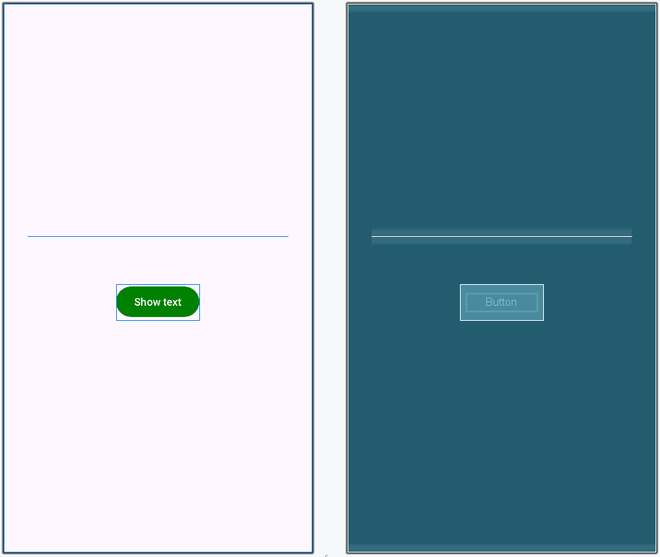
Let's add an another layout to add the edit text to, so that is positioned above the button, whose functionality is to show the user input as a toast on click. Navigate to app > res > layout > activity_main.xml file and add the following code.
activity_main.xml:
XML
<?xml version="1.0" encoding="utf-8"?>
<LinearLayout
    xmlns:android="http://schemas.android.com/apk/res/android"
    xmlns:tools="http://schemas.android.com/tools"
    android:layout_width="match_parent"
    android:layout_height="match_parent"
    android:id="@+id/main"
    android:gravity="center"
    android:orientation="vertical"
    tools:context=".MainActivity">

    <LinearLayout
        android:id="@+id/layout"
        android:layout_width="match_parent"
        android:layout_height="wrap_content"
        android:layout_margin="32dp"
        android:orientation="vertical"/>

    <Button
        android:id="@+id/button"
        android:layout_width="wrap_content"
        android:layout_height="wrap_content"
        android:layout_margin="32dp"
        android:text="Show text"/>

</LinearLayout>
Layout Design:
Step 3: Create Android EditText Dynamically in Kotlin
Here, we are created EditText Dynamically in kotlin. Then, Adding this EditText into LinearLayout, having id "layout". and a toast message is also shown when button is click.
First we create a EditText
val editText = EditText(this)
Configure the edit text
editText.setHint("Enter something")
editText.layoutParams = LinearLayout.LayoutParams(
    ViewGroup.LayoutParams.MATCH_PARENT,
    ViewGroup.LayoutParams.WRAP_CONTENT)
editText.setPadding(20, 20, 20, 20)
Then, we add the view to the layout
layout.addView(editText)
Navigate to app > java > {package-name} > MainActivity.kt file and add the following code.
MainActivity.kt:
Kotlin
package org.geeksforgeeks.demo

import android.os.Bundle
import android.view.ViewGroup
import android.widget.Button
import android.widget.EditText
import android.widget.LinearLayout
import android.widget.Toast
import androidx.appcompat.app.AppCompatActivity

class MainActivity : AppCompatActivity() {

    override fun onCreate(savedInstanceState: Bundle?) {
        super.onCreate(savedInstanceState)
        setContentView(R.layout.activity_main)

        val layout: LinearLayout = findViewById(R.id.layout)
        val button: Button = findViewById(R.id.button)

        // Create EditText
        val editText = EditText(this)
        editText.setHint("Enter something")
        editText.layoutParams = LinearLayout.LayoutParams(
            ViewGroup.LayoutParams.MATCH_PARENT,
            ViewGroup.LayoutParams.WRAP_CONTENT
        )
        editText.setPadding(20, 20, 20, 20)

        // Add EditText to LinearLayout
        layout.addView(editText)

        button.setOnClickListener {
            Toast.makeText(
                this@MainActivity,
                editText.text.toString().trim(),
                Toast.LENGTH_LONG
            ).show()
        }
    }
}
Output:
Explore
Overview
Basics
Control Flow
Array & String
Functions
Collections
OOPs Concept
Exception Handling
Null Safety
Regex & Ranges